How to Prepare and Set Up Your Laser Engraving Workshop
A strong DIY mindset makes all the difference when you’re running an industrial-grade laser system. You’ll get the best results when you approach setup with patience, problem-solving, and the flexibility to adjust as you learn.
A laser machine won’t “guess” what you want to make. You’ll guide it through your software workflow, then calibrate, focus, and test until the output matches your target quality. While you’re preparing your workspace and getting ready to install your machine, take your time and lean on OMTech’s support resources when you need them. For the smoothest start, read your machine manual in advance so you know the required space, power, and installation steps before delivery day.
This guide covers key workshop considerations, what to prepare before the machine arrives, how to uncrate safely, and the final steps to install and connect your laser system.
Laser Workshop and Room Considerations
Where you place your laser is just as important as which model you buy. If your workshop is ready on delivery day, installation is faster, safer, and far less stressful. Your machine manual (see the location section, typically around 3.2) includes model-specific requirements. Use the guidelines below to plan a practical, compliant setup.
Space Planning
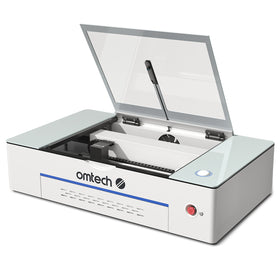
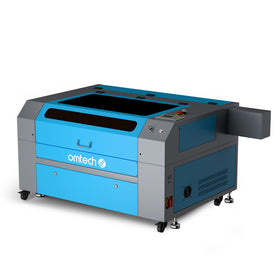
Start by measuring your available floor space, then confirm the machine can physically travel from the delivery point to the final location (door widths, hallway clearance, tight turns, and thresholds). On the product page, refer to the “overall dimensions” rather than the “work area,” because overall dimensions include external parts and protrusions (for example, an external tube cover on some CO2 models). Keep in mind that listed overall dimensions usually don’t include extra clearance needed with the lid open or with any passthrough/side doors open.
If you’ll use passthrough capability, leave enough space behind/alongside the machine so the passthrough doors can open fully and you can load and unload long materials without fighting the wall or other obstacles.
Electrical Requirements
Many mid-range laser systems run from a single power outlet, while some higher-power configurations may require two separate supplies. In Australia, mains power is typically 230–240V, so always check your machine’s rating plate and your manual for the exact voltage, current, and plug requirements. For best reliability, plan for a dedicated circuit and ensure your outlet is properly earthed and protected (for example, via an RCD/safety switch). If you’re unsure about wiring, earthing, or circuit capacity, use a licensed electrician—especially in older buildings.
Plan placement so the factory power lead reaches the outlet without strain. Extension leads are strongly discouraged; if you absolutely must use one, only use a heavy-duty, properly earthed lead that’s rated for the machine’s current draw (and suitable for continuous load). Avoid cheap household cords, keep the run as short as possible, and never daisy-chain multiple leads or power boards.
Exhaust and Ventilation
The safest and most effective approach is to vent fumes outdoors through a dedicated duct or window outlet using the supplied (commonly 6") exhaust hose. Your machine includes an internal fan system (model-dependent), but performance improves when ducting is short and has minimal bends. That usually means positioning the exhaust outlet close to your window or external vent point. Note that exhaust port locations vary by model—many mid-range systems vent from a side panel, while larger units often vent from the rear.
A popular upgrade is adding an inline duct fan to increase airflow and improve smoke removal. For best results, install the inline fan near the point where the duct exits the building, so it pulls fumes through the full duct run instead of relying on the machine to push air through a long hose. Choose a fan sized appropriately for your duct diameter and total run length.
- Recommended: AC Infinity Cloudline S6
- Alternate: AC Infinity Cloudline T6
If outdoor venting isn’t possible, use a proper filtration solution designed for laser fumes and particulates. A multi-stage fume extractor/air purifier can help reduce smoke and odours, but you should still follow local safety guidance and ensure adequate room air exchange.
- 80W Industrial Air Purifier (4 Stage Filtration)
- XL300 330W Air Purifier (5 Stage Filtration)
Warning: Do not connect your laser exhaust to vents used for other systems (for example, clothes dryers or woodworking dust collection). Laser exhaust can be hot and may carry flammable residue; mixing it with lint or wood dust significantly increases fire risk.
Cooling: Water Pump or Chiller
CO2 laser systems require stable cooling to protect the laser tube and maintain consistent output. Depending on your model, you’ll receive either a basic water pump (used with a separate reservoir such as a bucket/tub) or a dedicated chiller. The pump circulates water through the laser tube to remove heat. If you’re using a pump-and-reservoir setup, monitor water temperature closely—using a separate digital thermometer is one of the simplest ways to do this.
For light to moderate use, some users manage temperature by adding frozen water bottles to the reservoir. Your goal is to keep coolant within the recommended range (commonly around 16–21°C, depending on the tube and model).
For more reliable cooling with less day-to-day effort, an industrial water chiller is the most convenient option. Laser chillers cool the circulating water using either fan-assisted heat exchange or a refrigeration compressor, depending on the model and required performance. OMTech provides several chiller options to suit different tube sizes and workload demands (see the options below).
CW-3000 9L Industrial Water Cooling System – A fan-cooled unit that dissipates heat from the water through airflow. It’s best suited to smaller machines, such as K40-sized laser systems.
CW-5200 6L Industrial Water Chiller – Uses a refrigeration compressor to actively cool the water down to a temperature you set. It’s a strong match for 50W and higher CO2 lasers where stable, controlled cooling is important.
CW-5202 6L Dual Industrial Water Chiller – Also compressor-based, this unit chills coolant to a user-defined setpoint, with capacity designed to support dual cooling circuits. It can cool two laser tubes—either in a dual-head setup or across two separate machines—provided the installation is configured correctly. Like the CW-5200, it’s recommended for 50W and above, where consistent temperature control helps protect the tube and maintain performance. It’s a practical choice for users planning to scale up later: you can run a single machine now, and have the flexibility to add a second laser in the future without replacing your cooling system.
Preparing Your Workspace Before Delivery
- Clean the workshop thoroughly. Keep the area around the machine free from dust, overspray, and airborne contaminants—garages and sheds often need extra attention.
- If you’re venting outdoors or using a fume extractor, install and test it before the machine arrives.
- Based on your cooling plan, have distilled water ready (typically 8–12 litres, depending on the system).
- Confirm you have the correct electrical supply for your model (Australia commonly 230–240V). If a dedicated circuit or special outlet is required, arrange this in advance with a licensed electrician.
- Prepare tools for uncrating (for example, a drill/driver with appropriate bits/sockets for the crate hardware and machine standoff bolts).
- Plan the move realistically. These machines are heavy; higher-power units can exceed hundreds of kilograms. Check the shipping weight in your manual and organise enough help, a trolley, a pallet jack, a forklift, or a professional mover as needed.
- Clear the route from delivery point to final location. Remove trip hazards, protect floors, and make sure tight corners and doorways are manageable.
Uncrating and Installation
Follow the steps below to uncrate your laser system safely:
- Before opening the crate, read the uncrating section of your manual (often around section 3.3) so you know exactly what to expect.
- Inspect the crate on arrival. If you see damage, photograph it before proceeding.
- Remove the fasteners along the bottom edges that secure the crate walls to the base (the ones shown in the photo). Larger crates typically have multiple fasteners on each side. Using a drill/driver speeds up this step.

-
With at least two people, lift the crate top up and off the machine and set it aside safely.
- Inspect the machine itself. Photograph any damage immediately. If damage is significant, stop and contact OMTech Support before continuing.
- Remove the bolts that secure the machine’s standoffs to the crate base (see the photo).

- Wind the standoffs upward into the machine until the unit rests on its wheels/casters.
- With at least two people (or suitable lifting equipment), move the machine off the crate base. Safety first—do not attempt to lift beyond your capability. If needed, use a forklift, pallet jack, or professional movers. In some setups, an appliance dolly may help.
- Roll the machine into its final position.
- Recommended: Level the machine front-to-back and side-to-side by adjusting the standoffs. Proper levelling helps with stability, alignment, and consistent operation.
To complete installation and connections, follow these steps:
- Connect the ventilation hose(s) using the supplied clamps and fittings. Follow the venting instructions in your manual (commonly around section 3.6).
- If the laser tube is already installed, move to step 3. If it ships separately, install it carefully. CO2 tubes are glass and can be damaged easily. Do not plug the machine into power during tube installation.
- Inspect the tube for cracks or impact marks and photograph anything unusual.
- If the tube is intact, mount and secure it exactly as described in the manufacturer’s instructions.
- Connect the coolant hoses and the electrical connections to the tube as specified in the manual.
-
Connect the water pump or chiller hoses to the machine (see your manual, often around section 3.5). Key points:
- The pump/chiller outlet should feed the machine’s cooling inlet.
- The machine’s cooling outlet returns water back to the reservoir or chiller inlet.
- Check every hose run for kinks, pinches, or tight bends—inside and outside the machine—so flow remains steady.
- The pump/chiller outlet should feed the machine’s cooling inlet.
- Fill the reservoir/chiller with distilled water (capacity varies by model; many setups require roughly 8–12 litres).
- Power on the pump or chiller.
- Inspect all joints and fittings for leaks, including connections inside the machine and at the tube. Also verify the tube’s outer glass remains dry—water should only circulate within the internal water path.
- Look for air bubbles in the tube’s coolant line.
- If bubbles appear, cycle the pump/chiller off and on a few times to help purge air.
- If bubbles persist, temporarily raise the reservoir/chiller above tube height while the system runs to encourage air to move out of the line.
- If bubbles appear, cycle the pump/chiller off and on a few times to help purge air.
- Inspect all joints and fittings for leaks, including connections inside the machine and at the tube. Also verify the tube’s outer glass remains dry—water should only circulate within the internal water path.
-
If you’re using a chiller, set the target temperature range according to the chiller manufacturer’s guidance and your laser tube requirements.
- Connect the USB or network cable for the controller/PC connection as required.
- With all access doors closed, connect the machine to power. Use the correctly rated outlet/circuit specified for your model. Some higher-power configurations may require two separate power connections—follow your manual exactly and consult a licensed electrician if any requirements are unclear.
Conclusion
Once your machine is installed, you’re ready for initial commissioning: perform the ramp test, dial in focus, and begin working with your Ruida controller. For best performance, follow the “Initial Testing” steps in your manual (often around section 3.9) before running real production jobs.
Laser setup is a process—stay patient, make careful adjustments, and document what works for your materials and workflow. If you need help, OMTech’s support resources and user community are there to back you up. Wishing you a safe setup and excellent results—happy lasering.