Laser Engraving QR Codes: A Practical Guide
Whether you’re a small business, market trader, or independent maker, QR codes are an essential tool for sharing digital information in a simple, scan-ready format. Engraving them onto durable materials like wood, acrylic, leather, or metal not only gives your items a polished look, but also ensures they last much longer than printed stickers or paper.
In this guide, we’ll walk you through everything you need to know to laser engrave QR codes—from creating a scannable file and selecting suitable materials, to choosing the right machine and settings. You’ll also learn how to prep your workspace and make sure your codes are clear, accurate, and reliably readable.
Step 1: Create a Clean Vector QR Code
Start by generating your code with a reputable online QR generator. Most free tools allow you to enter a URL, contact details, or other content, then download the file as an SVG (Scalable Vector Graphic). Always opt for a vector format like SVG—these maintain crisp edges and scale well. Avoid bitmap images like PNG or JPG, which can blur or pixelate, leading to poor scanning performance.
Before engraving, test the code on multiple devices to ensure it works. It’s far easier to fix the digital file before you’ve started the laser process.
Step 2: Prepare and Import the Design
Import your SVG file into laser software such as LightBurn or EZCAD. Check the sizing: each square (known as a module) in the code should measure at least 0.5 mm wide for accuracy. Leave enough margin—also called a quiet zone—around the design to help scanners detect the code more easily.
Convert strokes to filled shapes, and make sure all elements are in vector format. This ensures the laser engraves solid squares, not just outlines.
Step 3: Choose the Right Material
Your choice of material depends on the intended use of the code and the type of laser you have available.
-
Wood offers a warm, natural look and engraves well when it’s pale and sanded smooth.
-
Acrylic, especially black or white, gives high-contrast, sharp results and is suitable for signage or display items.
-
Leather burns darker in the engraved areas and is best when vegetable-tanned or light in colour.
-
Metal, such as stainless steel or anodised aluminium, offers durability and a premium finish—ideal for long-term use.
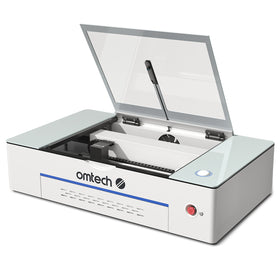
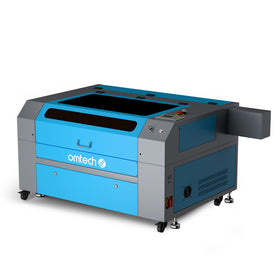
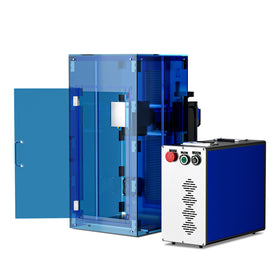
If you’re using a CO₂ or diode laser, stick to wood, acrylic, and leather. For bare metals, a fibre laser is the better option, offering deep, precise results.
Step 4: Clean and Secure the Material
Wipe down your material with isopropyl alcohol to remove dust and oils. This helps ensure a cleaner engraving and better contrast.
Secure your material to the laser bed using magnets, jigs, or clamps. Flat, stable positioning is key—any movement during the job could blur the detail or make the code unreadable.
Step 5: Laser Settings for Clean Results
Laser parameters depend on your machine and the material. For a 30W laser, here are some general starting points:
-
Wood: 40–60% power, 200–500 mm/s speed
-
Acrylic: 10–20% power, 200–400 mm/s speed
-
Leather: 40–70% power, 200–400 mm/s speed
-
Anodised/coated metal: 30–45% power, 1000–2000 mm/s speed
Use a line spacing of about 0.05 mm for crisp definition. Always test on a scrap piece before starting your final job.
Step 6: Set Focus and Alignment
Laser focus is crucial to achieving clean, readable results. If your machine has an autofocus function, use it. Otherwise, manually adjust the height so the laser is precisely aligned with the surface. A poorly focused beam can soften the edges of the code and reduce scan accuracy.
Step 7: Run the Engraving Job

Once your settings are dialled in and your material is secured, start engraving. Most QR codes take under a minute to complete. Watch the process to ensure the code engraves smoothly and nothing shifts or overheats.
Step 8: Clean and Test the Finished Code
After engraving, clean the surface. For wood or leather, use a soft brush or dry cloth. For metal, polish with alcohol to remove residue. Then scan your QR code with a smartphone to ensure it works properly. Test it from different angles and distances.
If scanning fails, consider adjusting the size, increasing contrast, or double-checking your focus.
Step 9: Creative Uses for Engraved QR Codes

QR codes aren’t just practical—they can elevate the look and function of many products:
-
Engrave them on wooden signs, product labels, or event passes
-
Add them to keyrings, coasters, gift tags, or point-of-sale displays
-
Use them on pet tags, business cards, or art pieces
-
Link to videos, menus, Wi-Fi logins, contact forms, or digital portfolios
The applications are endless, and engraved codes won’t smudge or peel off like printed ones.
The Ideal QR Engraving Machine: OMTech Solis Duo
If you want to engrave QR codes on multiple materials—from hardwood to polished metal—look no further than the OMTech Solis Duo. This powerful desktop laser system combines a fibre laser for metals with a diode laser for organic materials like wood, leather, and plastic.
The Solis Duo gives you professional-grade performance with a compact footprint, so you can engrave everything from keyrings to signage with ease. It’s perfect for artists, small businesses, and crafters who need versatility without compromising on detail or durability.
Whether you're batch-producing promotional items or creating one-of-a-kind gifts, the Solis Duo gives you total control and flexibility across a wide range of materials.
Final Thoughts
Laser-engraving QR codes is a practical and creative way to link physical products with the digital world. With clean vector files, carefully chosen materials, and the right laser settings, your engraved codes will scan reliably and look sharp for years to come.
Ready to take your engraving to the next level? Check out OMTech’s laser machines, ready to unlock creativity on wood, leather, metal, and more.